OAKOAK/memory
Dashboard
DocumentationGet started
OAK.memory

Memory cards & explorer

See how OAK.memory appears inside ChatGPT and Claude Desktop, from a compact result card to the expanded memory explorer.

Results inside your conversation

When your assistant calls recallMemory or listMemories, a compatible app can show an OAK.memory card with excerpts, the store name and recorded dates. Ask your assistant to find relevant memories or list a few memories in your chosen store. The assistant must actually use the OAK tool; ordinary chat replies do not automatically become cards.

The compact card shows up to three excerpts. Open Explore memories to inspect the returned memories, or select Open in OAK to use the OAK website.
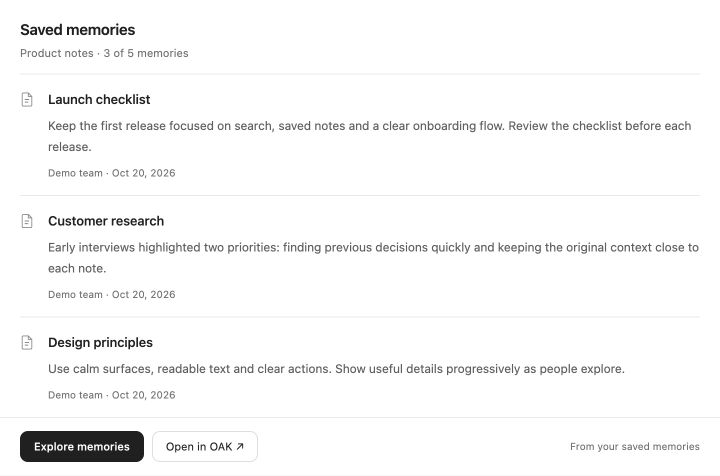
OAK.memory result card with three fictional product notes and the Explore memories button
English example, rendered from the shipping OAK.memory UI with fictional sample data. This is the OAK view only; the surrounding chat interface varies by app. Select the image to view it at full size.

Explore memories and their connections

The expanded explorer brings together the memory graph, the selected memory’s original text and related memories. Choose a store, search, browse its memories, select a node or use the memory picker. Existing connections are shown when they are included in the tool result; the UI does not invent relationships.

A result can contain only part of a store. Browse the store or load the next page when available to see more. Expanding the view alone does not load the entire store. Search and browsing use your existing connection and store permissions. These controls read memories; they do not edit or delete them.
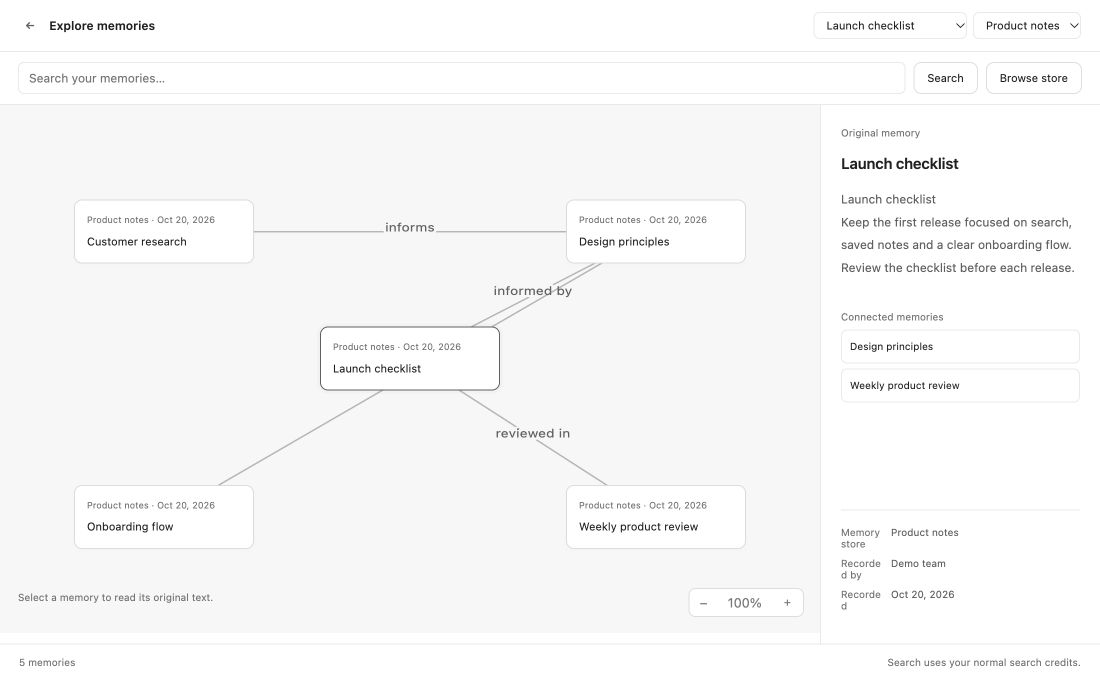
Expanded OAK.memory explorer showing fictional connected product notes, store and search controls, and the selected memory’s text
English example, rendered from the shipping OAK.memory UI with fictional sample data. This is the OAK view only; the surrounding chat interface varies by app. Select the image to view it at full size.

Where the UI appears

The current hosted OAK.memory service supplies the view to compatible ChatGPT and Claude Desktop connections. The visual UI does not require a particular official OpenAI plugin release. Plugin workflows and the hosted view are separate parts of the connection.

The app, account plan, organization policy and connection method determine whether embedded apps and expanded views are available. If expansion is unavailable, Explore memories opens the OAK web workspace. Clients without embedded UI can use the tool’s text result. Claude Code and terminal clients should not be expected to display these cards.

Cards accompany supported memory results, including save or update confirmations where writes are permitted. They are not attached to every message or every tool, and a host may choose how to display a result.

Connect your app

Follow the guide for your app, sign in to OAK and select the intended store and permissions. The homepage setup prompt can guide you through these steps; pasting it does not install a plugin or grant consent. The screenshots above contain no customer memories or account information.

Documentation

Carry useful context into your next AI conversation. Create a private store, connect your assistant, and save important facts and decisions as memories.

Get started

Install the published OAK.memory plugin in ChatGPT, use the Claude Code plugin or follow the connection guide for your app. Then sign in and verify your store.

Quickstart

Create a store, connect your assistant and save your first memory. The cloud service runs the database for you.

Using memory day to day

Once connected, talk naturally. Try remembering a preference, finding it in another conversation, and keeping it up to date.

Memory cards & explorer

See how OAK.memory appears inside ChatGPT and Claude Desktop, from a compact result card to the expanded memory explorer.

Connect OAK memory to ChatGPT

Connect ChatGPT to your OAK store so you can recall memories across conversations. Follow these steps to get started.

Connect Claude Desktop

Add OAK.memory Cloud to Claude to connect your cloud stores. Choose the instructions for your personal or company account.

Connect Codex

Follow the steps for your desktop app or CLI to connect OAK memory.

Core concepts

Understand memories, stores and retrieval before connecting them to a longer workflow.

Connect Claude Code

Use a personal key and store profile to connect the OAK.memory plugin to hosted memory.

Share a memory store

Give collaborators access to a shared context while keeping each account’s identity and usage separate.

MCP tool reference

The cloud MCP endpoint exposes tools for store discovery, retrieval and memory changes. Your connection supplies the account and store context.

Commands and conversation examples

Recall, save and manage memory from your conversation. Slash commands belong to the Claude Code plugin; connected web apps use natural-language requests.

Usage tiers and limits

Understand which limits your account shares, how operation credits work and what to do when a request is refused.

Troubleshooting

Identify whether an issue comes from your connection, permissions, usage or the embedding service.

Local plugin setup

Run memory on your own machine instead of using a hosted cloud store. This has a separate database and setup process.

Guides

Use memory for personal preferences, everyday plans, shared team context and development work.